This article will provide step-by-step instructions on how to download a payout report. Please note, Payout Reports are only available to those who have access to the registered LaunchGood account.
Option 1:
Step 1: Access the Financial Tab
- Open any campaign made under your account and click on the financial tab.

Step 2: Expand the payout details for the payout in question
Scroll down the page and click the dropdown arrow beside the Payout date

Step 3: Click on Download Icon next to desired payout
Option 2: Access the Payout Tab on your Fundraising Dashboard
- Log in using the email address listed in your fundraiser’s Payment Information section (this is your payout account).
- Go to your Fundraising Dashboard . Learn more about Fundraising Dashboard on this article.
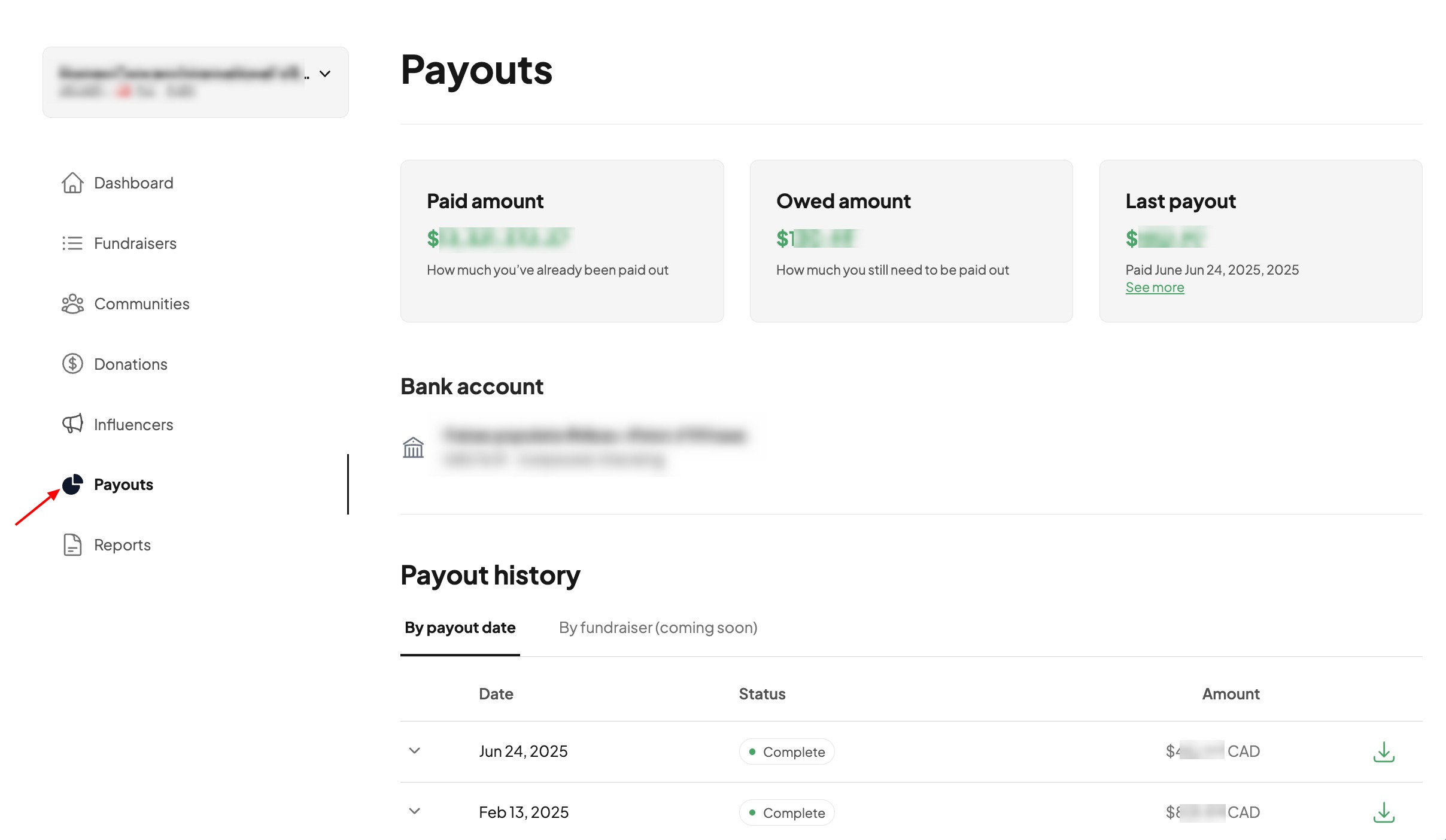
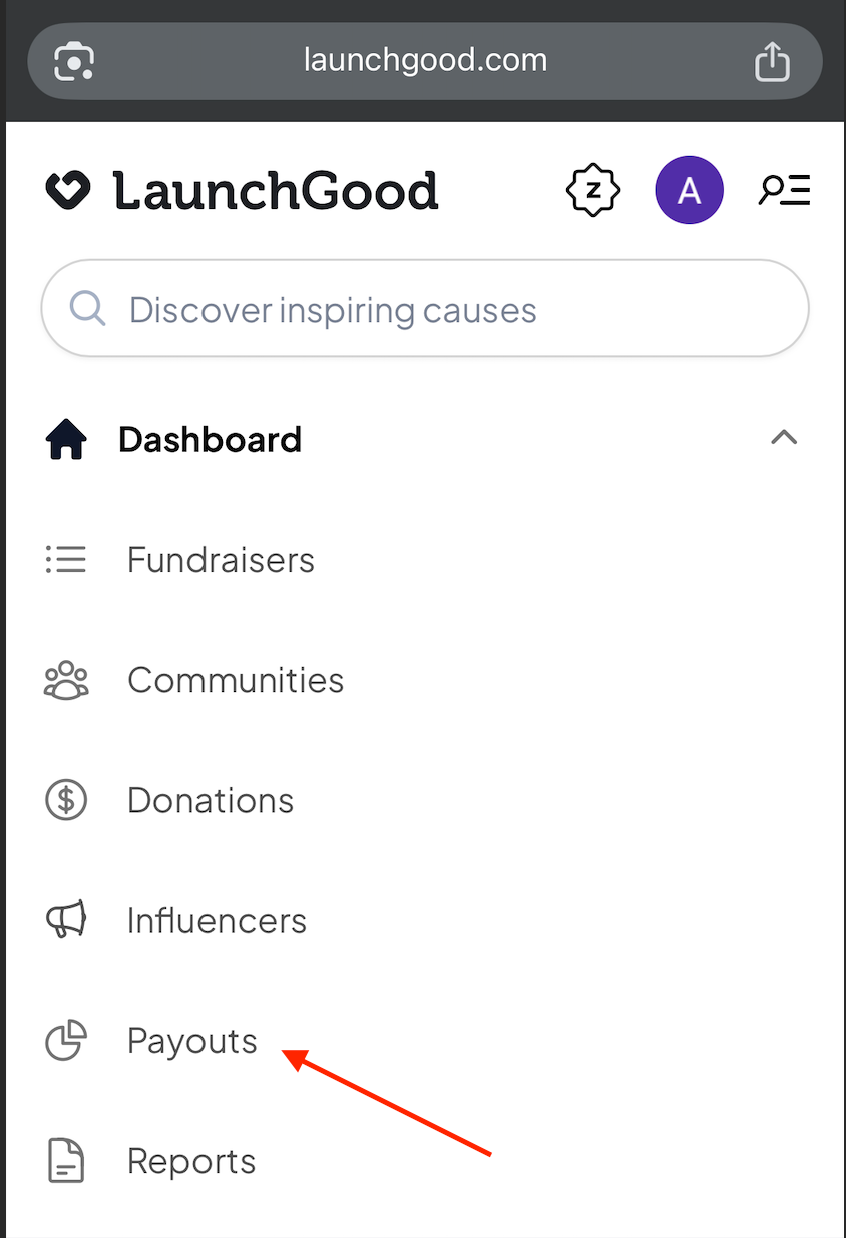
- Click the Payout tab:
- On desktop browser: Found in the left-hand menu
- On mobile browser: Tap the dropdown arrow next to Dashboard, then select Payout
- On desktop browser: Found in the left-hand menu
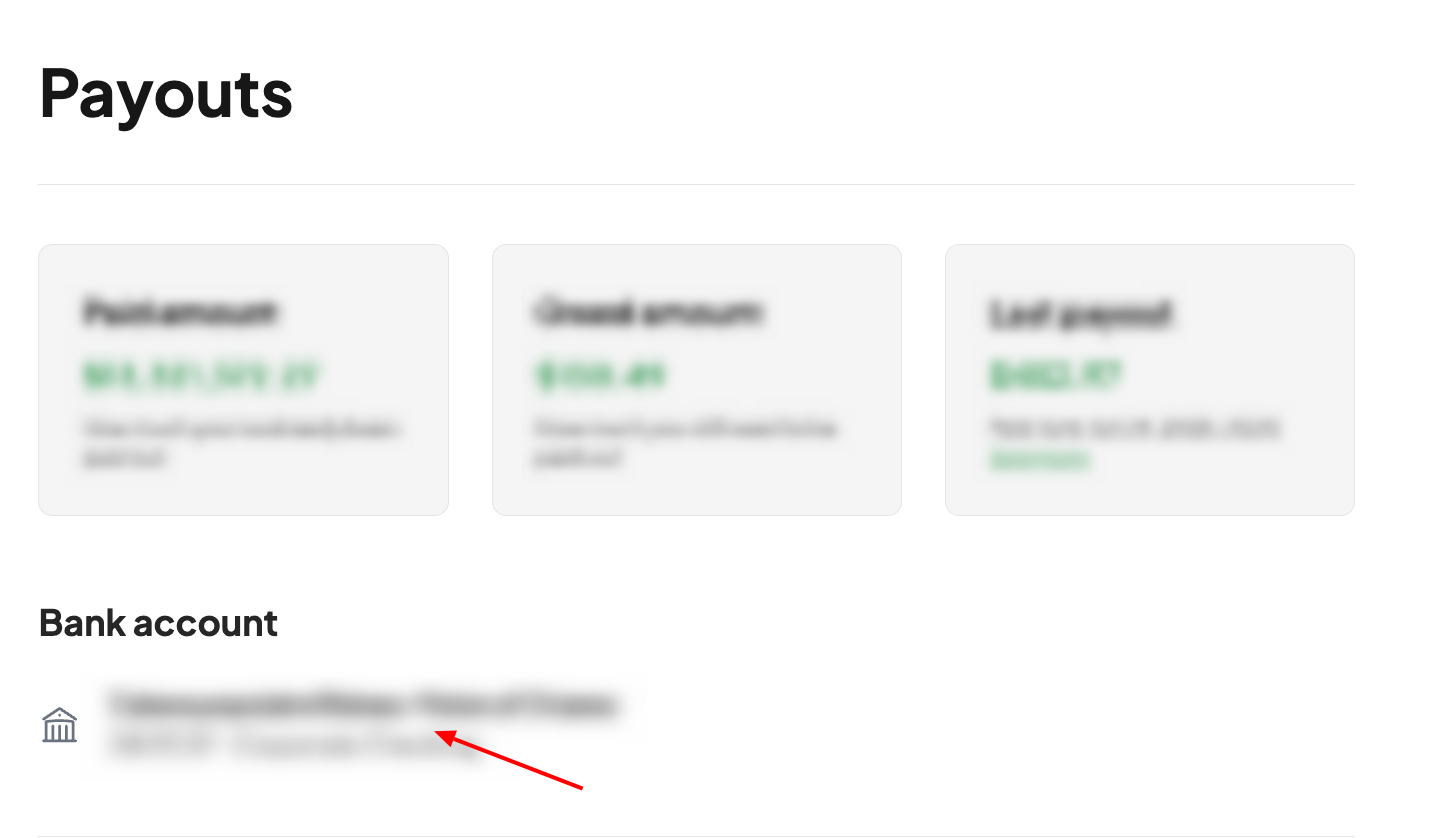
- On this tab, you can view:
- Paid amount: Total amount already transferred to your bank account
- Owed amount: Funds still pending release
- Last payout: Date and amount
- Bank account details: Where payouts are being sent
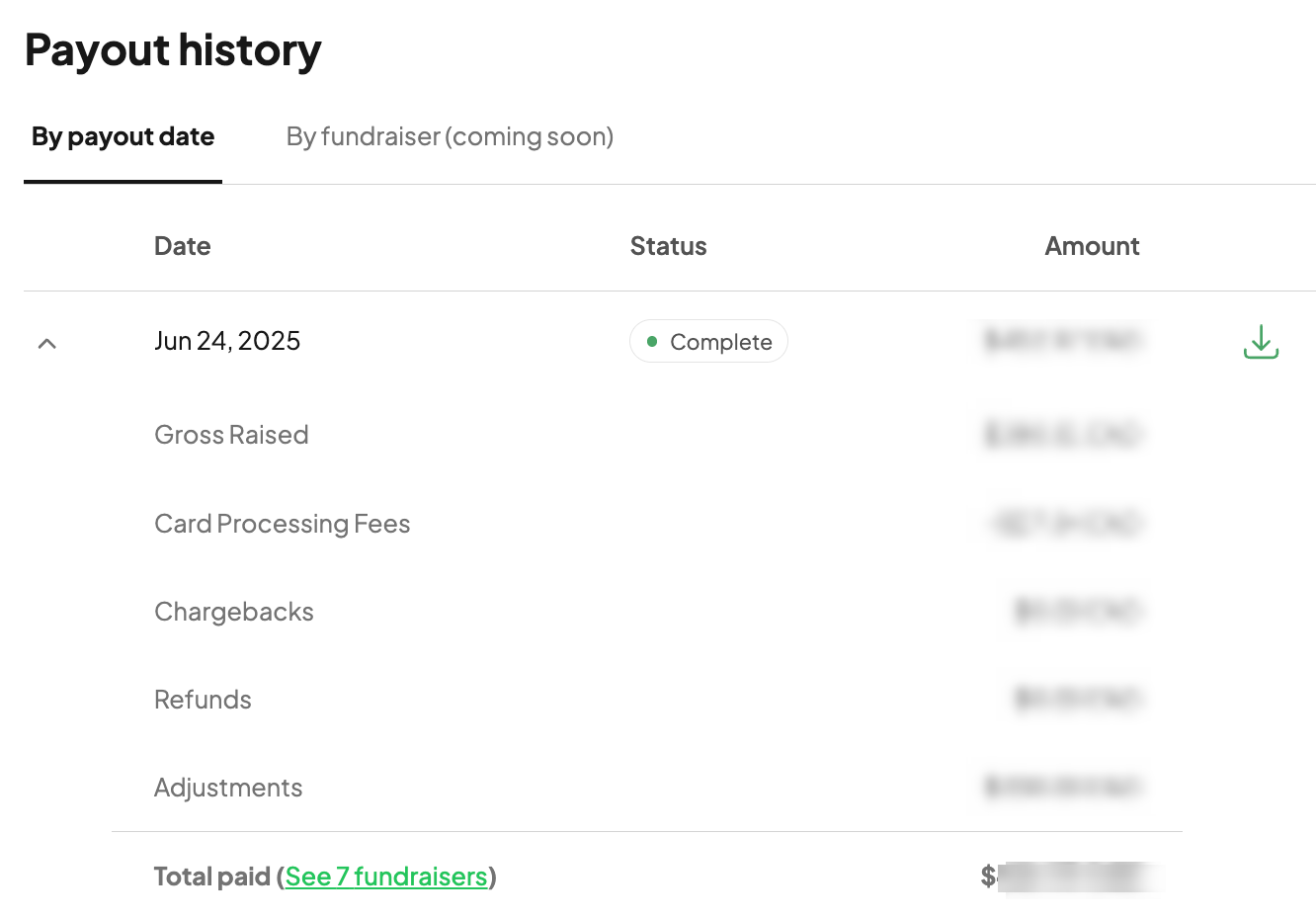
 Payout history: Includes downloadable reports and breakdowns of:
- Gross raised
- Processing fees
- Chargebacks
- Refunds
- Adjustments
You can email payments@launchgood.com with any questions or concerns.