At LaunchGood, we are dedicated to providing the best possible experience for fundraisers and donors alike. We continuously evaluate our platform to ensure it remains effective, transparent, and aligned with our mission of empowering impactful fundraising.
What has changed?
The “Update Donors” email feature has now been reactivated on our fundraiser dashboard. Fundraisers can once again send email updates directly to their donors from the dashboard, in addition to posting updates on their campaign page.
How can I update my donors using the “Update Donors” feature?
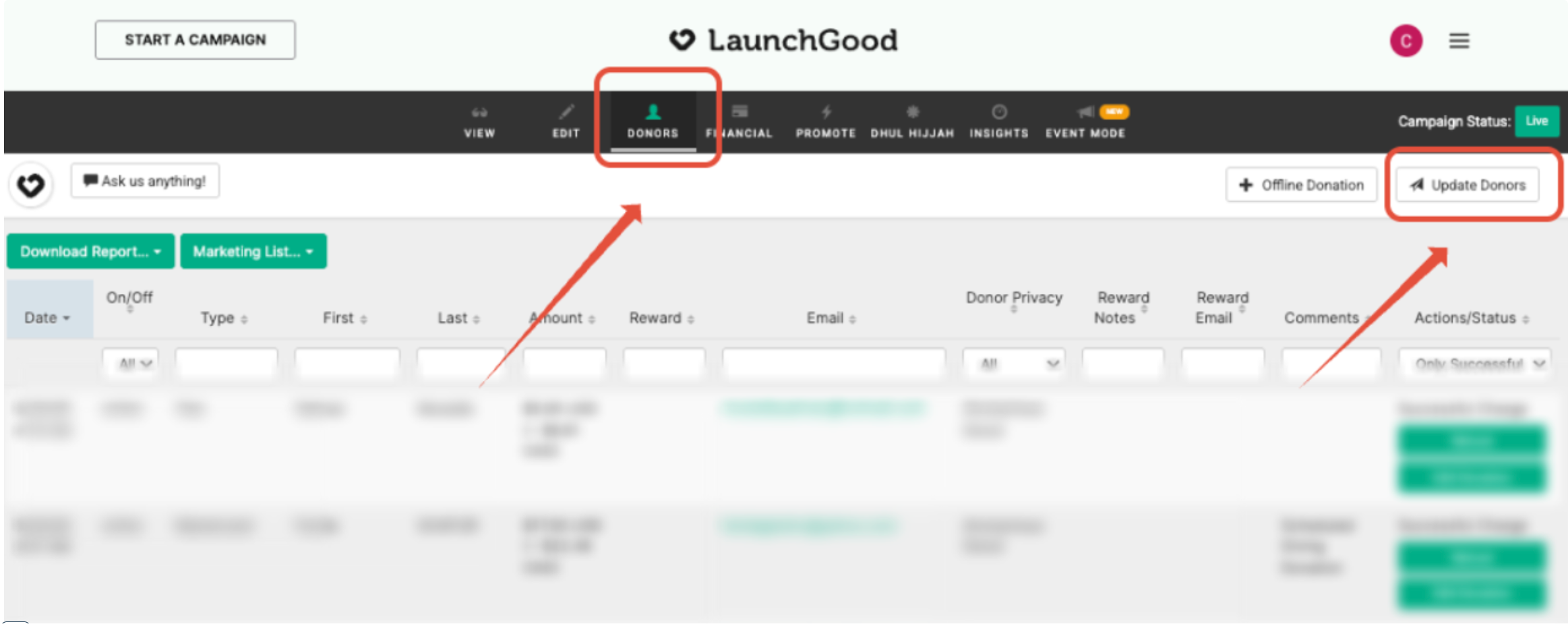
1. Log in to your LaunchGood profile and go to your fundraiser dashboard. From there, click on the Donors tab. Then, click the “Update Donors” button on the top right corner of the screen.
2. A pop-up window will open. This is where you can type your message to your donors. Select the “Type”, either General Update or Before and After Photos.
Make sure to check the box labeled “Send as an email” if you want your update to be emailed to your donors. If this box is not selected, the update will only be posted on your campaign page.
Please note if a donor has not opted in for an update, they will not receive the email.
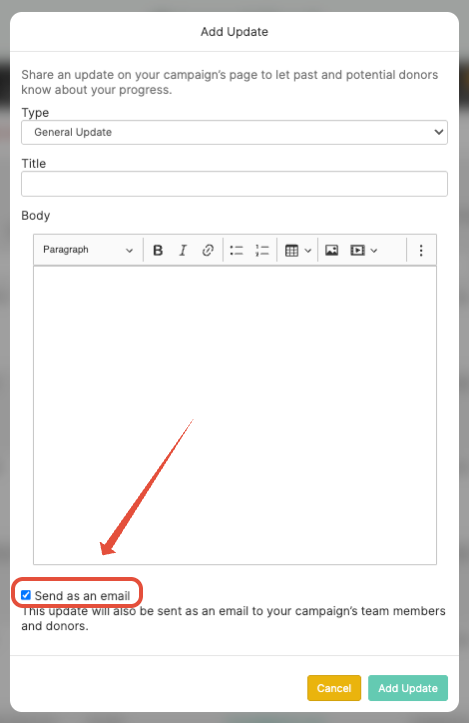
3. Fill out your donor update. Once everything is ready, click “Add Update” to publish and send it.
Need further support? Reach out to a LaunchGood Expert at support@launchgood.com!